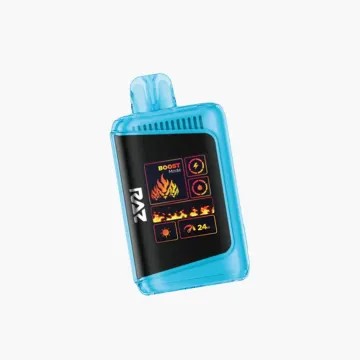
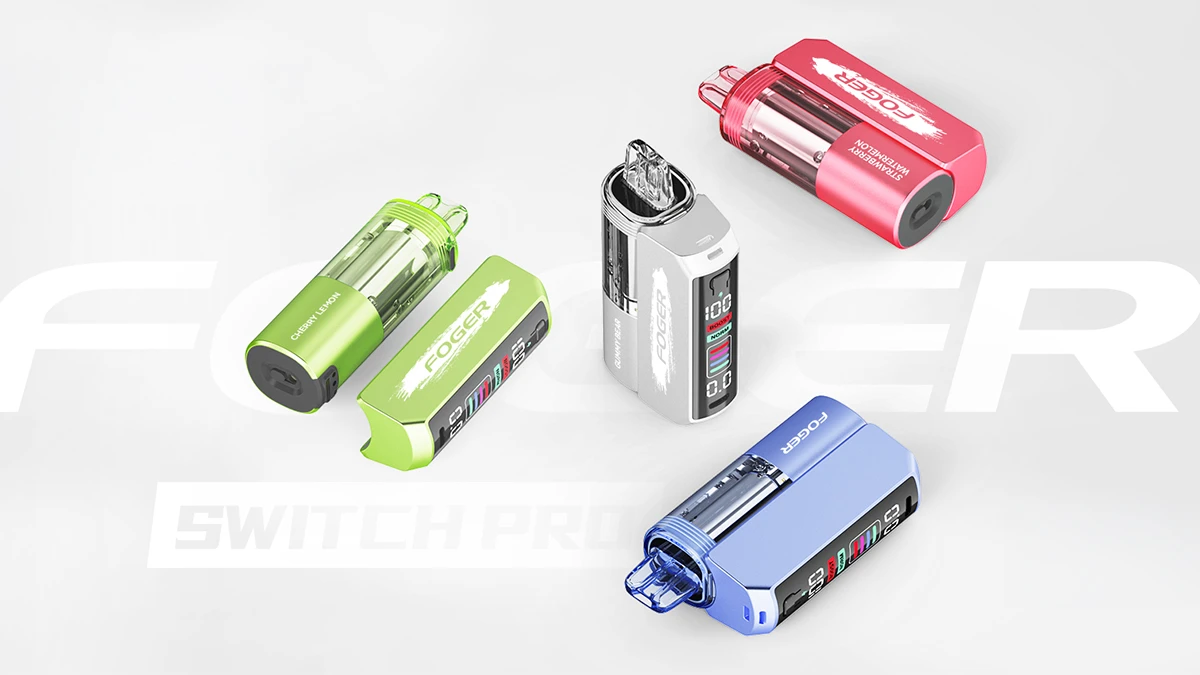
The Foger Switch Pro 30K isn't your typical disposable vape. It's a two-piece modular system with a reusable battery dock, a snap-on pod, an OLED display, and adjustable airflow. That's a lot of features packed into something the size of a lighter.
The upside is you get way more control over your vape experience than a standard disposable. The tradeoff is there's a bit more to learn when you first open the box. This guide walks you through everything: unboxing, first charge, pod connection, modes, airflow, charging, pod replacement, and maintenance.
If you haven't decided on the Switch Pro yet, check our full Foger review for a side-by-side comparison with the Foger Bit 35K.
Quick Start (60-Second Version)
- Charge the dock fully via USB-C (45 to 60 minutes).
- Snap the pod onto the dock. Gold pins align magnetically.
- Inhale from the mouthpiece. That's it. It's draw-activated.
- Triple-press the button to switch between Normal and Boost Mode.
- Twist the airflow ring: tight for a cigarette-style draw, open for big clouds.
Want the full breakdown? Keep reading below.
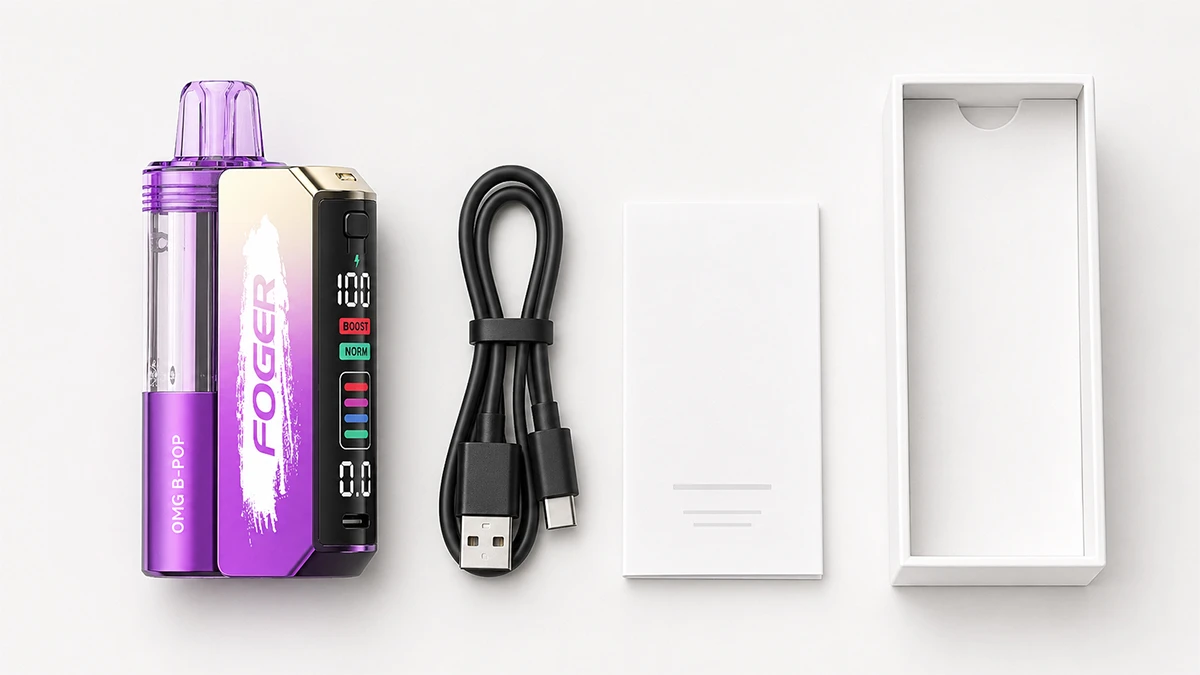
Everything inside the Foger Switch Pro 30K Kit
Step 1: What's in the Box
Open the Foger Switch Pro 30K Kit and you'll find two items, plus the packaging:
- 1x Power Bank Dock: The main body. Houses an 850mAh rechargeable battery, the OLED display, the airflow control ring, and the mode button. This is the piece you keep and reuse.
- 1x Pre-Filled Pod: Contains 19mL of e-liquid at 5% (50mg) salt nicotine. Has its own built-in 200mAh backup battery and a 1.0-ohm dual mesh coil. This is the piece you replace when it runs out.
No charging cable is included, so you'll use a USB-C cable you already own. The combined battery across both pieces is 1,050mAh. That's more total power than most standalone disposables in this price range. The dock and pod connect through gold magnetic contact pins on the top of the dock.
Step 2: Charge the Dock Before First Use
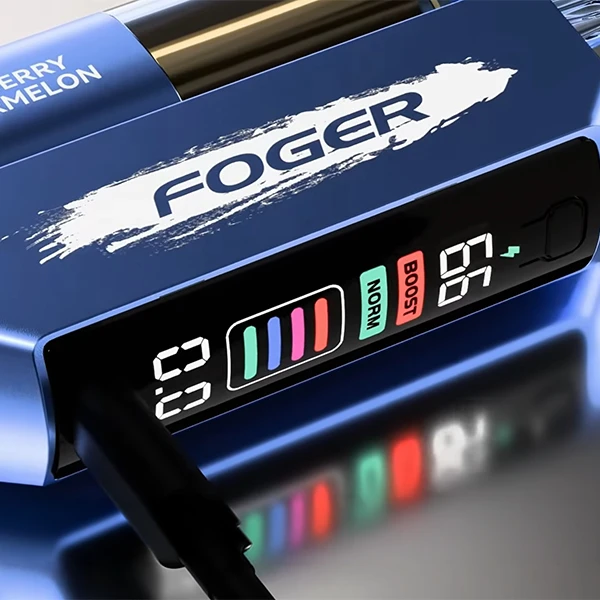
OLED charging animation during USB-C charge
Don't skip this step. The dock ships with a partial charge, but you'll want a full battery before your first session. Plug any USB-C cable into the port on the bottom of the dock and connect it to any USB power source (wall adapter, laptop, power bank).
The OLED display will light up and show a charging animation with the battery percentage climbing. A full charge takes 45 to 60 minutes. When it hits 100%, the animation stops and the display shows a solid battery icon.
You can vape while the dock charges (that's the pass-through charging feature), but it's better to let it finish for the first charge. This gives the battery a clean first cycle.
Step 3: Connect the Pod to the Dock
Pick up the pod and look at the bottom. You'll see two gold contact pins. Now look at the top of the dock. Same thing: two gold pin receivers surrounded by a magnetic ring.
Line up the pod with the dock and bring them close together. The magnets will pull the pod into place with a firm click. You don't need to twist, push hard, or lock anything. If it doesn't snap on easily, flip the pod 180 degrees and try again. The pins only align one way.
Once connected, the OLED display should wake up and show your battery level and e-liquid level. If the screen shows "188" instead, pull the pod off, wipe the gold pins on both pieces with a dry cloth, and reconnect. Our troubleshooting guide covers this in detail.
Step 4: Take Your First Draw
Here's where the Switch Pro keeps things simple. It's completely draw-activated. There's no fire button to hold, no sequence to press. Just put your lips on the mouthpiece and inhale.
The OLED display will flash briefly when it registers the draw. You should get smooth, warm vapor with solid flavor from the very first hit. The 1.0-ohm dual mesh coil heats evenly across its surface, so there's no break-in period or priming needed.
If you're not getting any vapor, double-check that the pod is fully seated on the dock. A loose connection is the most common reason for a dead first draw.
Step 5: Normal Mode vs. Boost Mode
The Switch Pro has two power modes, and the difference between them is significant. You toggle between them by triple-pressing the button on the side of the dock (three quick clicks). The OLED display updates to show which mode you're in.
Normal Mode
This is the default out of the box. Normal Mode runs the coil at a lower wattage, which produces smooth, moderate vapor. You get the full 30,000 puffs from a single pod in this mode. Flavor is clean and consistent. Most people stay in Normal Mode for all-day use because it balances flavor, battery life, and juice consumption.
Boost Mode
Boost Mode cranks up the wattage. You'll notice thicker clouds, a stronger throat hit, and more intense flavor. The tradeoff is that it burns through e-liquid and battery faster. You'll get around 18,000 puffs per pod in Boost Mode (roughly 40% fewer than Normal).
When to Use Each Mode
| Scenario | Recommended Mode | Why |
|---|---|---|
| All-day, steady use | Normal | Conserves battery and juice |
| Quick nicotine hit on a break | Boost | Stronger throat hit, faster satisfaction |
| Cloud chasing, showing off | Boost | Bigger, denser vapor production |
| Stretching a pod to last | Normal | Up to 30,000 puffs vs. 18,000 |
| Dessert or complex flavors | Boost | Higher wattage brings out more flavor layers |
| Subtle fruit or mint flavors | Normal | Cleaner, less overwhelming flavor |
You can switch modes as often as you want. There's no limit and no penalty. Some people use Normal Mode most of the day and flip to Boost for a few hits after meals or during breaks.
Step 6: Adjusting the Airflow
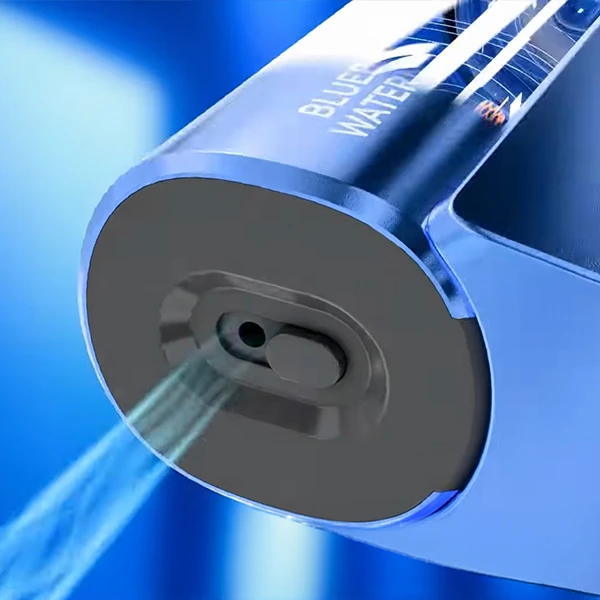
Airflow ring: twist to adjust draw tightness
The Switch Pro has a stepless adjustable airflow ring on the dock. Unlike devices with preset click-stops, this one slides smoothly from fully closed to fully open. You can set it anywhere along the range.
If you're new to vaping or coming from cigarettes, here's what the two ends of the spectrum feel like:
Tight Airflow (Closed Down) = MTL
MTL stands for mouth-to-lung. You pull the vapor into your mouth first, then inhale it into your lungs. This is exactly how you'd smoke a cigarette. The draw is tight, the vapor is warm, and the throat hit is noticeable. If you're trying to replicate the feeling of smoking, close the airflow down most of the way.
Open Airflow (Fully Open) = DL
DL stands for direct-lung. You inhale the vapor straight into your lungs in one breath, like breathing through a straw. The draw feels loose and airy, and you'll produce much bigger clouds. The throat hit is softer because the vapor is cooler. If you like big clouds and smooth hits, open it up all the way.
Finding Your Sweet Spot
Most people end up somewhere in the middle. Start with the airflow about halfway open and take a few draws. If it feels too tight and warm, open it a notch. If it feels too airy and you're not getting enough throat hit, close it down. There's no wrong setting. It's entirely personal preference.
How to Charge the Foger Switch Pro 30K
Charging is straightforward, but there are a few things worth knowing about how the two-piece system handles power.
Dock Charging
Plug the USB-C cable into the bottom of the dock. The 850mAh battery charges fully in 45 to 60 minutes. The OLED display shows a charging animation and battery percentage in real time. When it's full, the animation stops.
Pod Charging (Pass-Through)
Here's the clever part. When you charge the dock with the pod attached, the dock charges the pod's built-in 200mAh battery simultaneously through the gold contact pins. The pod takes about 15 to 25 minutes to charge this way. You don't need a separate cable or charger for the pod.
Vaping While Charging
Yes, you can. The Switch Pro supports pass-through charging, which means you can take draws while the USB-C cable is plugged in. The device will charge slightly slower when you're actively using it, but it works fine. This is handy when your battery dies mid-session and you don't want to wait.
Charging Tips
- Use a standard 5V USB adapter or any USB port. The Switch Pro doesn't need fast-charge bricks.
- Don't leave it plugged in for hours after it's full. The battery has overcharge protection, but it's good practice to unplug once it hits 100%.
- If the OLED goes completely dark and the device won't respond, it's fully drained. Plug it in and wait a minute or two before it powers back on.
- Keep the USB-C port clean. A quick blast of compressed air every few weeks prevents charging issues caused by pocket lint.
And if the dock stops holding a charge at all, you don't need a whole new kit. The Switch Pro Battery is sold on its own, and it takes every pod you already have.
How to Replace a Foger Switch Pro Pod
When the OLED display shows the e-liquid level at zero (or the vapor starts tasting thin and flavorless), it's time for a new pod. Here's the process:
- Pull off the old pod. Grip the pod near the mouthpiece and pull it straight up and away from the dock. The magnetic connection is firm but not locked, so it comes off easily.
- Check the dock pins. Look at the gold contact pins on top of the dock. If there's any residue or moisture, wipe them clean with a dry cloth or tissue.
- Open your new pod. Take the Foger Switch Pro 30K Pod out of its packaging. Each pod comes pre-filled with 19mL of e-liquid. There's nothing to fill or prime.
- Snap it on. Align the pod's gold pins with the dock and let the magnets pull it into place. You'll feel a solid click.
- Verify the connection. The OLED display should show a full juice indicator and your current mode. If it shows "188," remove the pod, clean the pins, and try again.
- Start vaping. The new pod is ready immediately. No waiting, no priming, no break-in period.
One important note: Foger Switch Pro pods are not refillable and not reusable. When a pod is empty, it's done. Some people on YouTube show refilling methods, but doing so voids any warranty and often causes leaking. Just grab a fresh pod from the Foger collection.
Reading the OLED Display
The OLED screen on the dock gives you all the information you need at a glance. Here's what each indicator means:
| Display Indicator | What It Shows | What to Do |
|---|---|---|
| Battery percentage | Remaining dock battery life | Charge via USB-C when it drops below 20% |
| E-liquid level bars | How much juice is left in the pod | Replace the pod when it hits zero |
| Mode icon (N or B) | Normal Mode or Boost Mode | Triple-press button to toggle |
| Charging animation | Device is plugged in and charging | Wait for 100% or vape via pass-through |
| "188" error | Dock can't read the pod | Clean pins, reseat pod (full fix here) |
| Blank screen | Battery is fully drained | Plug in USB-C and wait 1-2 minutes |
The display activates when you take a draw and turns off after a few seconds of inactivity. It doesn't stay on constantly, which helps conserve battery.
How Long Does a Pod Last?
Pod life depends entirely on how often you vape and which mode you use. Here are realistic estimates based on average puff frequency:
| Vaper Type | Puffs/Day | Normal Mode | Boost Mode |
|---|---|---|---|
| Light | ~100-150 | 4-5 weeks | 2-3 weeks |
| Average | ~300-400 | 2-3 weeks | 1-2 weeks |
| Heavy | ~600-800 | 1-2 weeks | 5-8 days |
Most people fall into the "average" category and get about two to three weeks from a pod in Normal Mode. If you mix modes throughout the day, your pod life will fall somewhere between the Normal and Boost columns.
Care and Maintenance Tips
The Switch Pro doesn't need much maintenance, but a few habits will keep it working well and prevent the most common issues.
Store It Upright
Always store the Switch Pro with the mouthpiece pointing up. Laying it on its side or upside down can cause e-liquid to seep into the airflow vents and leak. If you carry it in a pocket, try to keep it vertical. A shirt pocket or jacket pocket works better than a pants pocket for this reason.
Clean the Gold Pins
Every time you swap a pod (or once a week if you keep the same pod on), wipe the gold contact pins on both the dock and the pod with a dry cloth. Residue buildup on the pins is the #1 cause of the "188" connection error. Keeping them clean takes five seconds and saves you frustration.
Keep the USB-C Port Clear
Pocket lint and dust love to collect inside the charging port. If the dock stops charging or charges intermittently, check the port first. A toothpick or a blast of compressed air will clear it out. Don't use anything wet or metallic inside the port.
Avoid Extreme Temperatures
Don't leave the Switch Pro in a hot car, on a windowsill in direct sun, or outside in freezing weather. Heat can thin the e-liquid and cause leaking. Cold can reduce battery performance temporarily. Room temperature storage is ideal.
Don't Chain-Vape Excessively
The dual mesh coil needs a second or two between draws to re-saturate with e-liquid. If you take 10 rapid-fire puffs back to back, the coil can dry out and produce a burnt taste. Space your draws a couple of seconds apart, especially in Boost Mode where the coil runs hotter.
Frequently Asked Questions
How do I turn the Foger Switch Pro on?
There's no power button. The device activates automatically when you inhale. If the OLED screen is blank, plug it in to charge. Once the battery has power, it'll respond to your next draw.
How do I switch between Normal and Boost Mode?
Triple-press the button on the side of the dock. Three quick clicks. The OLED display will update to show which mode you're in. You can switch as often as you like.
Can I use the pod without the dock?
Yes. The pod has its own 200mAh internal battery, so it works standalone. Battery life won't last as long, and you won't have the OLED display or airflow adjustment. But if you forget the dock at home, the pod alone will get you through the day in a pinch.
How do I know when to replace the pod?
Watch the e-liquid level on the OLED display. When the bars drop to zero, the pod is empty. You might also notice the vapor tasting thin or losing flavor intensity toward the end. That's your signal to swap in a fresh replacement pod.
Can I refill the pod with my own e-liquid?
No. Foger Switch Pro pods are pre-filled and sealed at the factory. They're not designed to be opened or refilled. Attempting to refill them usually results in leaking and poor performance.
How long does charging take?
The dock charges fully in 45 to 60 minutes via USB-C. The pod charges through the dock in 15 to 25 minutes via pass-through. You can vape while charging if you need to.
What does "188" on the screen mean?
It means the dock can't detect the pod. Pull the pod off, wipe the gold contact pins on both pieces with a dry cloth, and reconnect. This fixes the issue about 80% of the time. For more solutions, check our Foger Switch Pro troubleshooting guide.
Which flavors should I try first?
Blue Razz Ice is the #1 seller across all Foger products. Watermelon Ice and Miami Mint are close behind. If you like dessert flavors, Strawberry Cupcake is the fan favorite on the Switch Pro. We have a full breakdown in our best Foger flavors guide.
You're All Set
That covers everything you need to know to get the Foger Switch Pro 30K up and running. Charge the dock, snap the pod on, and inhale. The learning curve is about five minutes, and after that it's as easy as any disposable.
The Switch Pro gives you 30,000 puffs per pod in Normal Mode, 65+ flavor options, pass-through charging, and full airflow control. When it's time for a new flavor or your pod runs out, just grab a replacement pod and keep going. No need to replace the dock.
Pick up the Foger Switch Pro 30K Kit or browse all Foger products at Vape City USA. Free shipping on qualifying orders. Adults 21+ only.
Running into issues? Our Foger Switch Pro troubleshooting guide covers every common problem and fix. For a full comparison with the Foger Bit 35K, read our complete Foger review, and our complete Foger vape guide covers the whole range including which pods fit this power bank.
This product contains nicotine. Nicotine is an addictive chemical.