WARNING: Products mentioned here contain nicotine. Nicotine is an addictive chemical. For adults 21+ only. Stop using a device that overheats, leaks heavily, or smells burnt.
If your Foger Switch Pro 30K shows "188" on the screen, that's the most common issue and it's a quick fix: take the pod off, wipe the gold contact pins on both the dock and pod with a dry cloth, and snap it back on. Most Switch Pro problems aren't real defects. They're connection hiccups, dirty contacts, an empty pod, or a drained battery, and most take under a minute to solve. This guide covers every common issue (the 188 error, no vapor, blinking lights, leaking, burnt taste, and charging) with step-by-step fixes.
Key Takeaways
- "188" error means the dock can't read the pod. Clean the gold contact pins and reseat. That fixes it most of the time.
- No vapor? Check the OLED for battery and e-liquid level first, then reseat the pod and open the airflow.
- Burnt taste usually means chain-vaping. Rest the coil 30 seconds and space your puffs.
- Leaking usually means it was stored on its side. Always store mouthpiece up.
- Only need a pod? A replacement pod costs a fraction of replacing the whole kit.
Quick Diagnosis: Find Your Fix Fast
The Foger Switch Pro 30K is a reliable device, but even reliable devices run into the occasional hiccup. Most issues aren't actual defects. They're connection problems, dirty contacts, or simple user errors that take less than a minute to fix.
Start with this table. Find your symptom, check the likely cause, and try the quick fix. If that doesn't solve it, scroll down to the detailed section for step-by-step instructions.
| Symptom | Likely Cause | Quick Fix |
|---|---|---|
| "188" on OLED display | Dock can't read the pod | Clean gold contact pins with dry cloth |
| No vapor when drawing | Low e-liquid, dead battery, or airflow blocked | Check OLED display for battery/juice level |
| Blinking light | Low battery or pod connection issue | Charge via USB-C, reseat pod |
| Burnt or harsh taste | Coil overheated from chain-vaping | Wait 30 seconds, take shorter draws |
| Leaking from airflow vents | Stored sideways or upside down | Store mouthpiece pointing up |
| Blank OLED screen | Fully drained battery | Charge for at least 30 minutes |
| Weak or thin vapor | Low juice, clogged airflow, or Normal Mode | Try Boost Mode, clean airflow dial |
| Won't charge | Debris in USB-C port or bad cable | Clean port, try a different cable |
| Airflow stuck or stiff | Debris in stepless airflow dial | Clean with compressed air |
| Condensation on mouthpiece | Normal with dual mesh coils | Wipe mouthpiece, store upright |
Now let's go through each problem in detail. For basic setup and first-time use, check our How to Use the Foger Switch Pro guide (publishing soon).
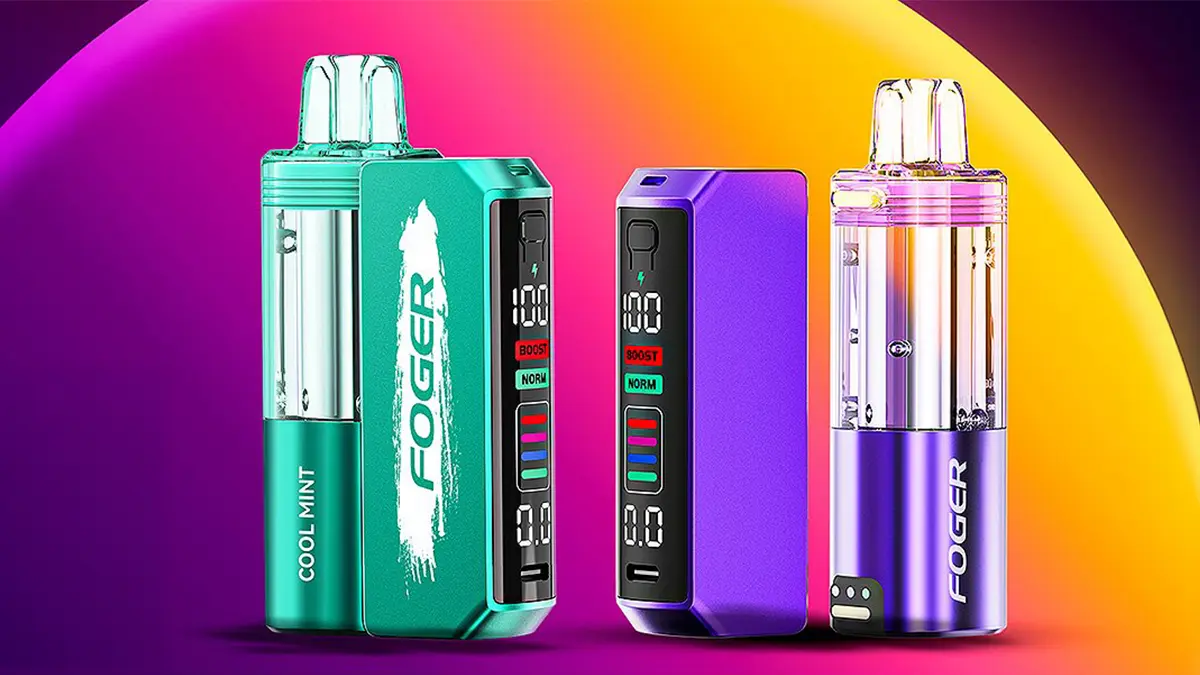
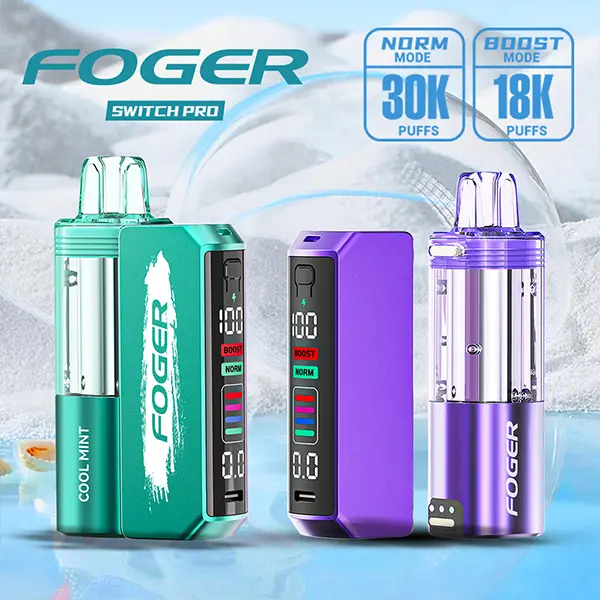
The Foger Switch Pro 30K dock and pod. Most issues involve the magnetic connection between these two pieces.
The 188 Error: What It Means and How to Fix It
This is the number one support question we get about the Foger Switch Pro. When the OLED display shows "188," it means the dock can't communicate with the pod. The gold magnetic contact pins on the dock aren't making a clean connection with the pins on the bottom of the pod.
Good news: about 80% of 188 errors are solved by a simple cleaning. Here's the full process.
Step-by-Step 188 Error Fix
- Remove the pod from the dock. Pull it straight up (don't twist or rock it).
- Look at the gold pins on the top of the dock and the bottom of the pod. You'll see two or three small gold circles on each piece.
- Wipe the pins with a dry cotton swab or a lint-free cloth. If you see dark residue, gunk, or dried e-liquid on the pins, that's your problem.
- Check for liquid around the pin area. If there's any e-liquid on the contacts, dry it completely. A tiny bit of isopropyl alcohol on a cotton swab works great for stubborn residue.
- Reinsert the pod firmly into the dock. You should feel the magnets click into place. Don't force it at an angle.
- Wait 2 to 3 seconds for the OLED display to refresh. The 188 should disappear and your normal battery/juice readings should return.
If the 188 Error Keeps Coming Back
When cleaning doesn't fix it, there are a few more things to try:
- Try a different pod. If you have a second pod, snap it onto the dock. If the new pod works fine, the original pod has a bad seal or damaged pins. Replace it.
- Check pod alignment. The pod should sit flush on the dock with no gaps. If it wobbles or sits crooked, the magnets may not be pulling the contacts together properly.
- Inspect the pins for damage. If a pin looks bent, pushed in, or scratched, that's a hardware defect. Contact Foger or your retailer for a replacement.
- Remove and wait. Pull the pod off, wait a full 10 seconds, then reconnect. This resets the dock's internal reading cycle.
About 20% of persistent 188 errors come from a pod with a bad factory seal. That's not something you can fix at home. If you bought from an authorized retailer like Vape City USA, you can return or exchange the pod.
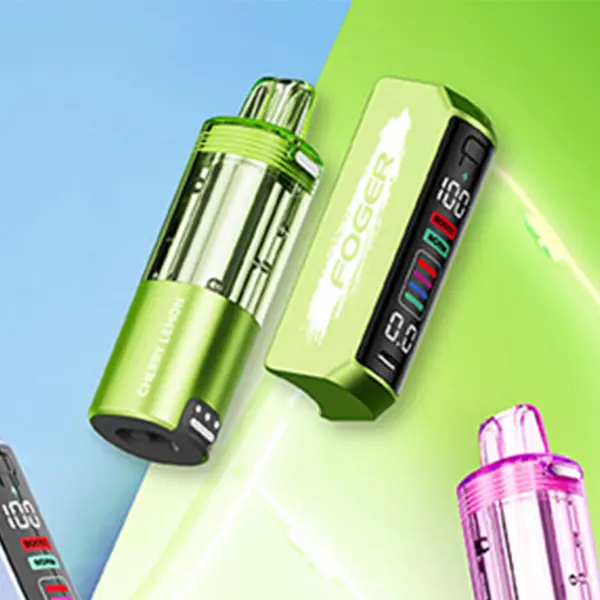
The gold contact pins on the dock (left) and pod bottom (right). Keep these clean to prevent the 188 error.
No Vapor: Switch Pro Not Hitting
You draw on the mouthpiece and nothing happens. No vapor, no throat hit, nothing. This is the second most common issue, and it usually comes down to one of four things.
Check the OLED Display First
The display tells you almost everything you need to know. Look at two readings: battery level and e-liquid level.
- Battery icon empty: Plug in the USB-C cable and charge for at least 30 minutes before trying again.
- E-liquid level at zero: The pod is empty. You need a new pod.
- Both readings look normal: The issue is likely airflow or pod connection. Keep reading.
- Screen is blank: The battery is completely dead. Charge it. The screen will light up once it has enough power.
Fix a Pod That Won't Hit
- Reseat the pod. Pull it off the dock and snap it back on firmly. A loose connection stops the device from firing.
- Clean the gold contacts on both the dock and pod (same process as the 188 error fix above).
- Check the airflow dial. It's the stepless ring on the bottom of the dock. Make sure it isn't fully closed. Rotate it until you feel air flowing through when you draw.
- Try Boost Mode. If you're in Normal Mode and getting very faint draws, switching to Boost Mode increases power to the coil. This won't fix a dead battery or empty pod, but it helps if the coil just needs more wattage.
- Draw harder and slower. The Switch Pro is draw-activated. A very quick, light puff sometimes doesn't trigger the sensor. Try a steady 2 to 3 second draw.
Blinking Light Patterns and What They Mean
The Foger Switch Pro doesn't have a detailed LED error code system like some pod mods, but it does blink in different situations. Here's what each pattern typically means.
- Steady slow blink (every 2 to 3 seconds): Low battery. Plug it in to charge.
- Rapid blinking (several times fast): Pod connection issue. Remove the pod, clean the contacts, and reseat it.
- Blinks then stops: Overheating protection. The device got too hot (usually from chain-vaping). Set it down for 30 to 60 seconds and let it cool.
- No blink, no OLED: Completely dead battery. Charge for at least 30 minutes.
If the blinking doesn't match any of these patterns and the device isn't responding to anything, try the hard reset: remove the pod, wait 10 seconds, then reconnect. If that doesn't help, the dock may need replacing.
Burnt or Harsh Taste
Getting a burnt, dry, or harsh hit from your Foger Switch Pro? The 1.0 ohm dual mesh coil is efficient, but it can overheat if you don't give it time to re-saturate between puffs.
Why It Happens
The dual mesh coil heats e-liquid across a wide surface area. That's great for flavor, but it also means the wicking material needs a moment to pull fresh liquid from the reservoir after each draw. Chain-vaping (taking draws back to back without pausing) dries out the wick faster than it can refill.
How to Fix It
- Stop vaping immediately once you taste something burnt. Continuing to puff on a dry wick makes it worse.
- Set the device down and wait 30 seconds. This gives the wick time to re-saturate.
- Take a test draw. If the flavor is back to normal, you're good. Space your puffs at least 1 to 2 seconds apart going forward.
- Check the e-liquid level on the OLED display. A pod with very low juice will give burnt hits even with pauses between puffs.
- Switch to Normal Mode if you're in Boost Mode. Boost sends more power to the coil, which increases the chance of dry hits if you're vaping frequently.
If the burnt taste doesn't go away after 30 seconds of resting, the coil may be permanently scorched. At that point, the pod needs replacing. A new Foger Switch Pro Pod gets you a fresh coil and 19mL of e-liquid.
Pod Leaking: Causes and Prevention
Leaking is annoying, but it's almost always preventable. Here's what causes it and how to stop it from happening.
Storage Position
This is the biggest one. The Foger Switch Pro has airflow vents on the dock, and e-liquid can seep through those vents if the device sits on its side or upside down. Always store it with the mouthpiece pointing up. If you carry it in a pocket, keep it vertical.
Temperature Changes
Leaving the device in a hot car or in direct sunlight thins out the e-liquid, making it more likely to leak through the coil and into the airflow chamber. Don't store it above room temperature.
Counterfeit Pods
This is a real problem. Fake Foger pods are the single biggest source of leaking complaints we see. Counterfeit pods often have poor seals around the coil housing, which lets juice flow where it shouldn't. More on how to spot fakes in the section below.
Always store the Switch Pro with the mouthpiece up to prevent e-liquid from reaching the airflow vents.
Cleaning Up a Leak
- Remove the pod from the dock.
- Wipe down the gold contacts and the area around them with a dry cloth or paper towel.
- Blow gently through the mouthpiece (from the top, into the device) to clear liquid from the airflow channel.
- Wipe the outside of the dock, especially around the airflow dial.
- Reattach the pod and store it upright.
Battery and Charging Problems
The Foger Switch Pro has a combined 1,050mAh battery system: 850mAh in the dock and 200mAh in the pod. Both charge through the dock's USB-C port. Here's what to do when charging doesn't work as expected.
Device Won't Charge
- Try a different USB-C cable. Not all cables are equal. Some cheap cables don't carry enough current. No cable comes in the box, so if yours is a cheap spare, borrow the one you charge your phone with.
- Check the USB-C port for debris. Pocket lint and dust can pack into the port over time. Use a toothpick or a can of compressed air to gently clean it out.
- Use the right power adapter. The Switch Pro needs at least 5V/1A. Most phone chargers and laptop USB ports meet this spec, but some older USB hubs don't. If the OLED doesn't show a charging indicator, try a different power source.
- Let it sit on the charger. If the battery is completely dead, the OLED screen won't light up immediately. Give it at least 15 to 20 minutes before assuming it's broken.
If none of that works, the part that failed is the dock, and it's the one piece you can replace by itself. A new Switch Pro Battery takes every pod you already own, so a dead dock doesn't cost you your flavors.
Charging Times
Normal charge times for the Switch Pro are 45 to 60 minutes for a full dock charge, with the pod getting charged via pass-through in about 15 to 25 minutes. If yours takes significantly longer, check for cable or adapter issues.
Pass-Through Charging Not Working
The Switch Pro supports pass-through charging, meaning you can vape while it charges. If this isn't working, make sure the pod is seated firmly and the charging cable is plugged in securely. Some ultra-low-power USB sources (like USB 1.0 ports on old computers) may not deliver enough power to charge and fire the coil at the same time.
Airflow Issues
The stepless airflow dial on the Foger Switch Pro lets you adjust draw tightness from a tight mouth-to-lung hit to a loose direct-lung draw. But the dial can sometimes give you trouble.
Airflow Dial Stuck or Hard to Turn
- Check for dried e-liquid. If the device has leaked at any point, juice can dry around the airflow dial. Wipe the area with a slightly damp cloth.
- Use compressed air. A short burst into the airflow opening clears out dust and debris that might be jamming the mechanism.
- Don't force it. The dial should rotate smoothly. If it's completely locked up, the internal O-ring may be damaged. That's a warranty issue.
Airflow Feels Wrong Even When Open
If the draw feels restricted even with the airflow fully open, check the pod. A pod that isn't seated correctly can block the internal air path. Remove it, reseat it, and try again. Also check for condensation buildup inside the mouthpiece, which can partially block airflow on the intake.
OLED Display Problems
The OLED screen on the Foger Switch Pro dock shows battery level, e-liquid level, and the current mode. When it stops working, here's what to check.
Screen Is Blank
A blank screen almost always means a dead battery. Plug in the USB-C cable and charge for at least 30 minutes. The screen should turn on once the battery has enough power to boot up. If it still doesn't light up after a full charge, the dock may have a hardware issue.
Screen Frozen or Showing Wrong Readings
This is a firmware glitch. It happens occasionally and it's easy to fix:
- Remove the pod from the dock.
- Wait a full 10 seconds.
- Reconnect the pod.
- The screen should reboot and show accurate readings.
If the e-liquid reading seems off (showing full when the pod is nearly empty, for instance), the sensor on the pod may be malfunctioning. Try a different pod to confirm.
Condensation Buildup
Condensation on the mouthpiece or inside the airflow path is normal with dual mesh coil devices. It's not a defect. The wide coil surface area produces more vapor, and some of that vapor condenses back into liquid as it cools.
Managing Condensation
- Wipe the mouthpiece regularly with a tissue or paper towel. Once a day is plenty for most users.
- Store upright. This keeps condensation from pooling in the airflow path.
- Blow gently through the mouthpiece (downward, into a tissue) to clear the air channel if you notice gurgling sounds.
- Avoid short, rapid draws. Longer, steadier draws produce less residual condensation than quick puffs.
When to Replace vs. When to Fix
Not every problem needs a new pod or a new dock. Here's a quick breakdown of what's fixable and what means it's time to buy a replacement.
| Issue | Fixable? | When to Replace |
|---|---|---|
| 188 error | Yes (clean pins) | Persists after cleaning + trying new pod |
| No vapor | Usually (reseat pod, charge, check airflow) | Dock doesn't fire with any pod |
| Burnt taste | Yes (rest the coil, check juice level) | Burnt taste persists after resting 30+ sec |
| Leaking | Yes (store upright, clean up) | Leaking from sealed areas (defective pod) |
| Won't charge | Sometimes (new cable, clean port) | Won't charge with any cable or adapter |
| Blank OLED | Usually (charge fully) | Blank after 1+ hour of charging |
| Airflow stuck | Usually (clean with compressed air) | Dial physically broken or cracked |
| Bent contact pin | No | Replace dock (hardware defect) |
Remember: if you only need a new pod, the Foger Switch Pro Pod is all you need. You don't have to replace the entire kit. That's the whole point of the modular system.
How to Spot Counterfeit Foger Pods
Counterfeit Foger products are a growing problem, and fake pods cause more issues than any other single factor. Leaking, burnt taste from the first puff, 188 errors that won't clear, and pods that don't snap on properly are all common with counterfeits.
Three Things to Check
- Scratch-off authentication code. Every genuine Foger pod has a scratch-off panel on the packaging with a verification code. Scratch it off and enter the code at fogervape.com to verify. If there's no scratch-off panel, it's fake.
- Packaging quality. Authentic Foger packaging has crisp printing, correct spelling, and consistent color. Counterfeits often have slightly blurry text, color differences, or misspellings on the ingredient list.
- Pricing. If the deal looks too good to be true, it probably is. Compare the asking price against what the brand's authorized sellers charge today rather than against a fixed figure, because prices move and a stale number is a poor test. A listing far below every authorized seller is the signal worth acting on.
The easiest way to avoid fakes is to buy from authorized retailers. We carry only authentic Foger products at Vape City USA, sourced directly from the manufacturer.
Preventive Maintenance: Keep Your Switch Pro Running Smoothly
A little basic care goes a long way. These habits will prevent most of the issues covered in this guide.
- Clean the gold pins once a week. A quick wipe with a dry cloth takes 10 seconds and prevents 80% of 188 errors.
- Store upright. Mouthpiece up, always. This prevents leaking and condensation pooling.
- Don't chain-vape. Give the coil 1 to 2 seconds between draws. Your flavor will be better and the coil will last longer.
- Charge before it dies completely. Fully draining the battery repeatedly shortens its overall lifespan. Plug in when the OLED shows 10 to 20% remaining.
- Keep it out of extreme heat. A hot car, a sunny windowsill, or sitting next to a heater can thin the e-liquid and cause leaks.
- Clean the USB-C port monthly. A toothpick or compressed air keeps lint from building up.
- Use authentic pods. Genuine Foger pods have consistent quality and proper seals. Counterfeits cause a disproportionate number of the problems listed in this guide.
For a full walkthrough of setting up and using the device for the first time, check out our Foger Switch Pro setup guide (publishing soon).
Warranty and Returns
Most Foger Switch Pro units work perfectly out of the box. But defects do happen, and you should know your options.
Buying from Authorized Retailers
When you buy from an authorized retailer like Vape City USA, you get access to returns and exchanges for defective units. We inspect and test products before they go on the shelf. If you receive a dock that won't charge, a pod with a bad seal, or pins that arrive bent, reach out to our support team and we'll get you sorted.
What's Covered
- Dock hardware defects (dead OLED, bent pins, broken airflow dial, charging port failure)
- Pod defects (bad seal, won't connect to any dock, leaking from sealed areas)
- Dead-on-arrival units
What's Not Covered
- Normal wear (coil degradation over time, eventual battery capacity loss)
- Damage from misuse (dropping, water exposure, using third-party modifications)
- Empty pods (the pod is a consumable product)
- Products purchased from unauthorized sellers or unverified online marketplaces
If you bought your Switch Pro from a gas station, smoke shop, or online seller that isn't an authorized Foger retailer, your options for returns may be limited. This is another good reason to buy from verified stores.
Frequently Asked Questions
What does 188 mean on the Foger Switch Pro?
The "188" code on the OLED display means the dock can't read the pod. It's a connection error between the gold magnetic contact pins. Remove the pod, wipe both sets of pins with a dry cloth, and reconnect. This clears the error about 80% of the time. If it persists, try a different pod. A persistent 188 across multiple pods means the dock's pins may be damaged.
Why is my Foger Switch Pro not hitting?
Check three things: battery level, e-liquid level, and pod connection. The OLED display shows battery and juice status. If both look fine, remove the pod, clean the gold contacts, and reseat it. Also make sure the airflow dial isn't fully closed. If none of that works, try a different pod to rule out a pod defect.
How do I fix the burnt taste on my Foger vape?
Stop vaping immediately and set the device down for 30 seconds. The dual mesh coil needs time to re-saturate between draws. After resting, take a slow draw. If the flavor is normal again, just space your puffs 1 to 2 seconds apart. If the burnt taste stays, the coil is likely scorched and you'll need a replacement pod.
Why is my Foger Switch Pro leaking?
The most common cause is storing it on its side or upside down. E-liquid seeps through the airflow vents when gravity pulls it the wrong direction. Always store it mouthpiece up. Counterfeit pods are the second biggest cause. If you bought from an unverified seller and the pod leaks from day one, it's likely not a genuine Foger product.
My Foger Switch Pro won't charge. What should I do?
Start with the cable. Try a different USB-C cable and a different power adapter (5V/1A minimum). Check the USB-C port on the dock for lint or debris and clean it with a toothpick or compressed air. If the battery was completely dead, leave it plugged in for at least 15 to 20 minutes before checking again. A dock that won't charge with any cable is a hardware defect.
How long does the Foger Switch Pro battery last?
The combined battery is 1,050mAh (850mAh dock plus 200mAh pod). In Normal Mode, most users get a full day of moderate vaping before needing to recharge. Heavy users may need to charge once or twice a day. A full dock charge takes 45 to 60 minutes via USB-C.
Can I use the Foger Switch Pro pod without the dock?
Yes. The pod has its own 200mAh internal battery, so it works as a standalone device. But the battery won't last nearly as long as when it's connected to the dock. Most people use them together for all-day battery life.
How do I know if my Foger pod is genuine?
Check for the scratch-off authentication code on the packaging. Enter the code at fogervape.com to verify. Also look at packaging quality (crisp printing, correct spelling) and compare the asking price against what the brand's authorized sellers charge today. If you're paying far less than all of them from an unverified seller, those pods may be counterfeit.
Get Authentic Foger at Vape City USA
Every Foger product we sell is sourced directly from the manufacturer and verified authentic. If you're dealing with repeat issues from pods purchased elsewhere, the simplest fix might be switching to a trusted source.
Browse the full lineup: Foger Switch Pro 30K KitReplacement Pods, and the Foger Bit 35K. See all Foger products in our Foger collection. For a full overview of both devices, read our Foger Vape Review, or start from our complete Foger vape guide if you are still deciding between the sealed Bit and the modular Switch Pro.
Adults 21 and older only. Please vape responsibly.
This product contains nicotine. Nicotine is an addictive chemical.